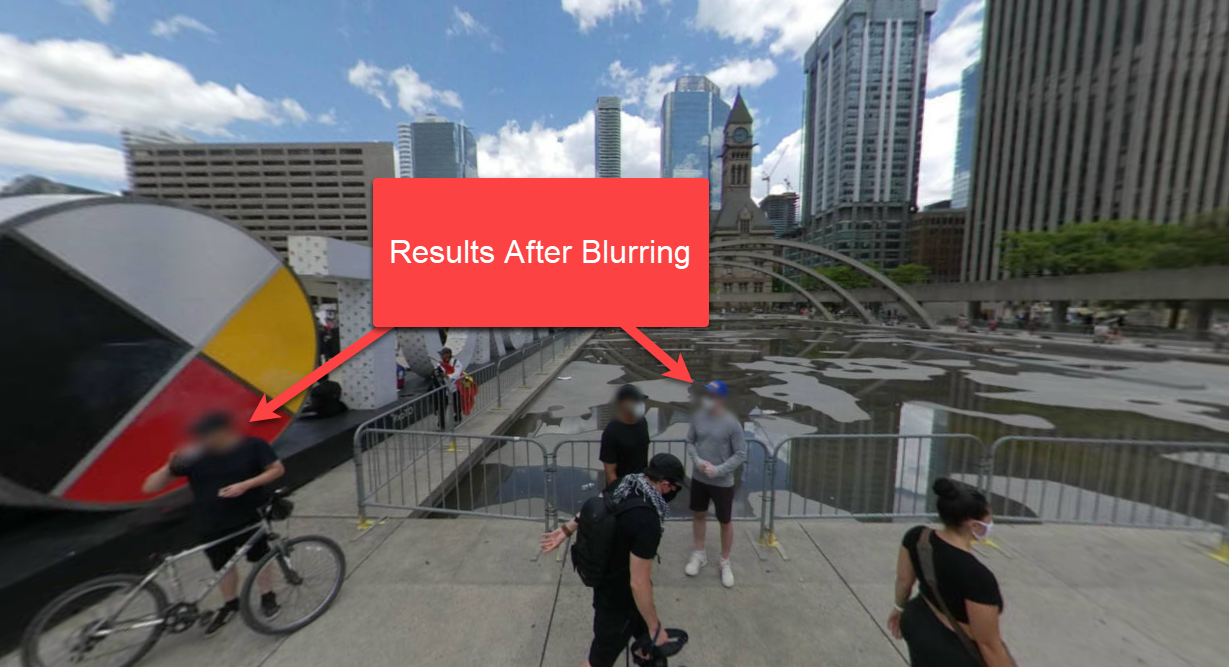
How to Blur Using New AI Moderator
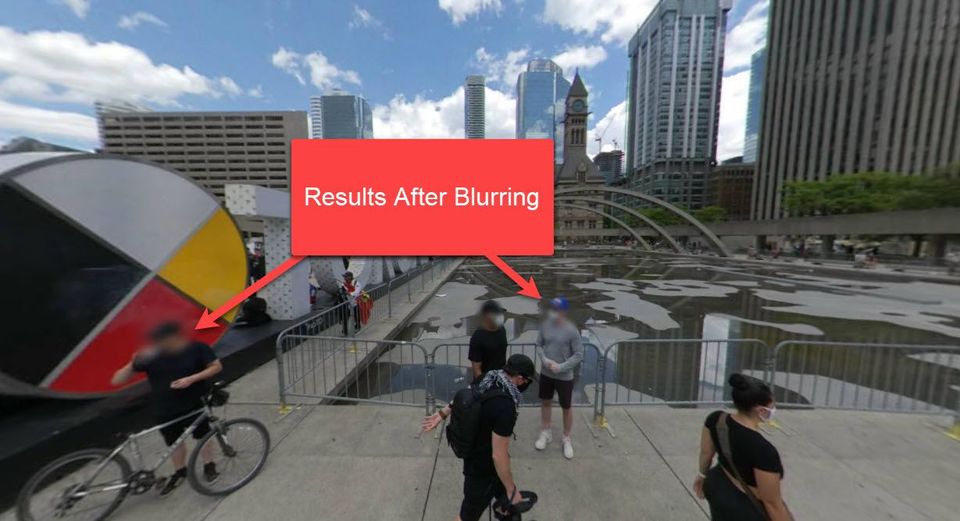
If you're uploading panoramas to Google Street View, it's crucial to ensure that any sensitive information—such as car license plates, faces, or other private details—is properly obscured to respect privacy rights.
In just a few simple steps, you can easily protect individual privacy and meet image guidelines with confidence.
Before You Begin
Before you can blur sensitive information, you must first select the panoramas you want to process.
- Open the tour you want to edit or blur.
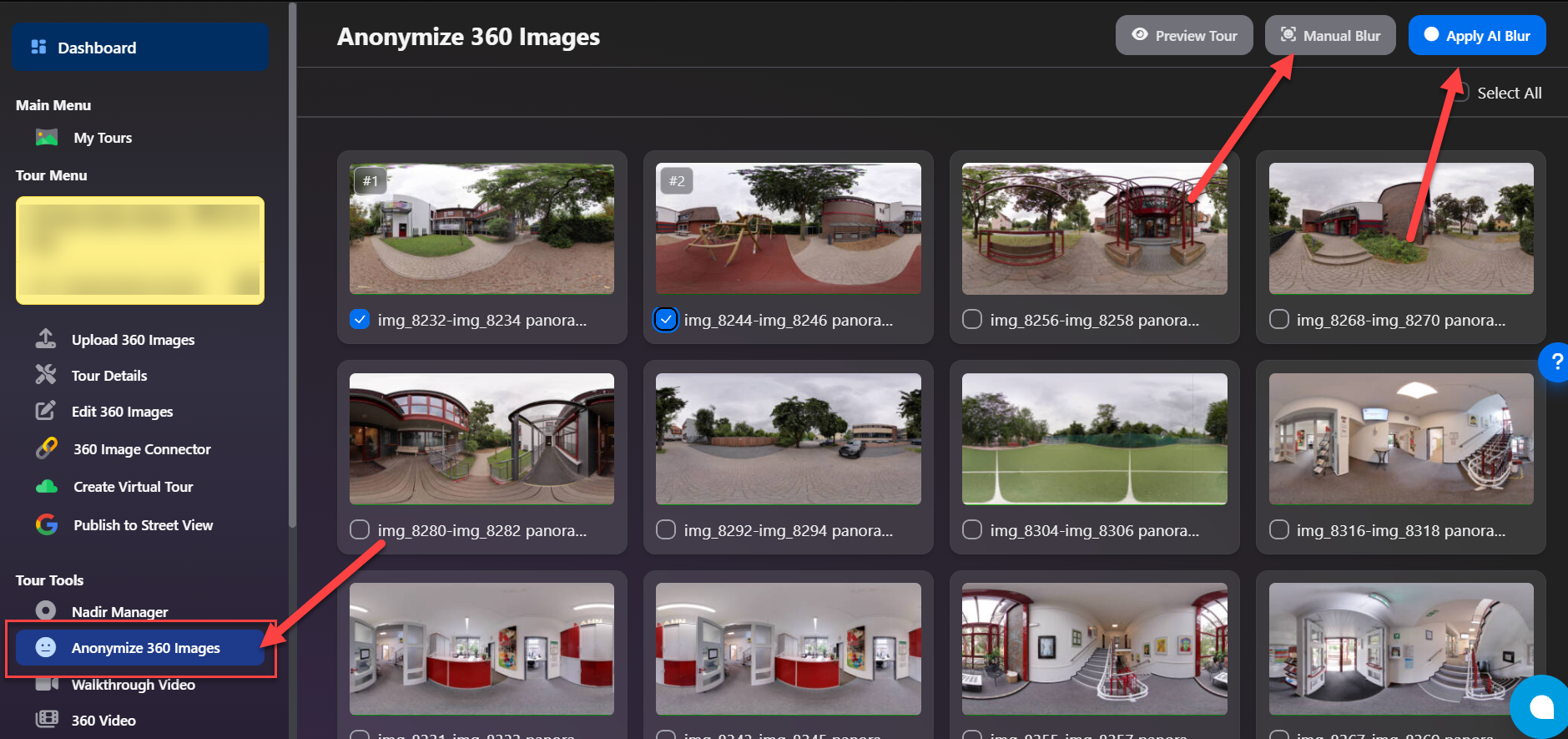
- From the left navigation menu, click Anonymize 360 Images.
- Select one or more panoramas by checking the box beneath each image.
Once you've selected the panoramas, choose one of the available blur methods:
- Apply AI Blur – Automatically detects and blurs faces and license plates.
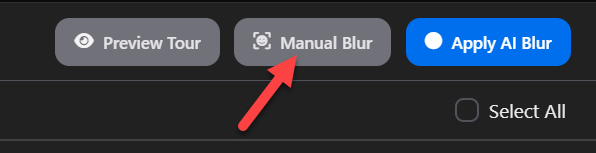
- Manual Blur – Opens the selected panoramas in the AI Moderator, where you can manually select the areas you want to blur such as faces, license plates, or other sensitive information.
Note: Blur selections for Manual Blur must be created through the 360 Image Connector. Panoramas that already contain a blur selection are marked with a blue badge, making them easy to identify before processing.
The following steps will show you on how to select areas on the moderator and apply the blur.
Step 1: Select the areas you want to blur
- Choose the tour where you need to do the blurring and open it in AI Moderator.
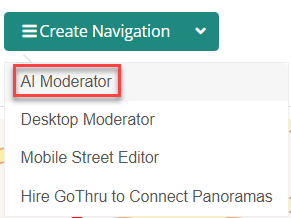
- Open AI Moderator. From the Tools screen, select "Create Navigation" and select AI moderator.
3. Open the desired panorama in the main viewer.

4. Activate the Blurring Mode by pressing B from the keyboard or select Blur Mode.

5. Press Shift and, on the image, select with the left mouse click the area you want to blur.

6. Carefully navigate through the tour to find all the spots that need to be blurred and perform the actions described above.
7. When you are done blurring, save the changes by pressing Ctrl + S or by choosing Save from the upper right corner menu of the Moderator.

Step 2: Apply the blur
- Now go back to the Anonymize 360 image page.
2. Press the Manual Blur button to apply the blur instantly.
3. Now, wait until the blurring process is completed. The blurring process will take 5-10 minutes, depending on the size of the constellation.
4. To verify if the blur was applied to the panoramas, press the View button, and inspect all the blurred spots.