
What to Do When Levels Are Not Shown on Google Street View

Sometimes, even when your tour has multiple levels correctly set up in GoThru, the Elevator Widget (floor selector) does not appear on Google Street View. This guide explains why this happens and how to fix it using the GoThru interface.
How Levels Appear on Google Street View
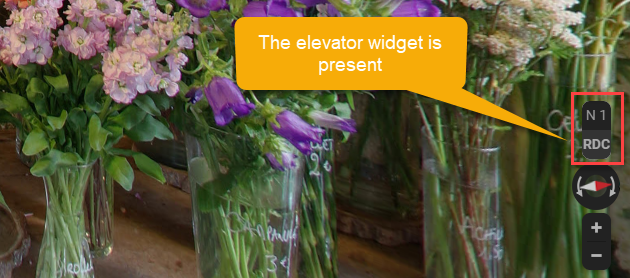
On Google Street View, levels are displayed using the Elevator Widget, usually located in the lower‑right corner of the screen above the compass.
- Each number represents a floor/level
- The highlighted (darker) number shows the current level
- Users can click another number to move between floors
If this widget is missing, Google is not detecting valid proximity between levels.
Why Levels May Not Be Shown
Google only displays levels when:
- At least one panorama from each level is within ~30 meters of another level
- The panoramas are properly connected on the map
- Levels were assigned before publishing to Google
If these conditions are not met, Google may hide the Elevator Widget entirely.
How to Fix Missing Levels
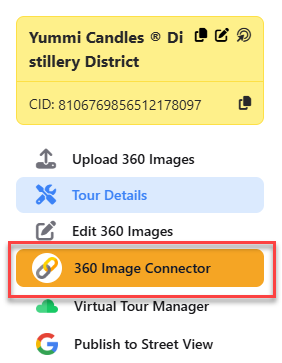
Step 1: Open the Moderator
- Open your tour in GoThru.
- Click 360 Image Connector to open the Moderator.
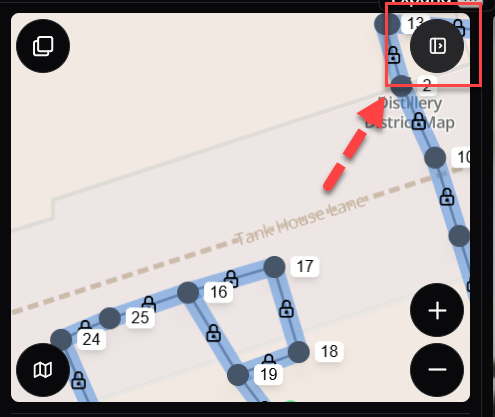
Step 2: Expand the Constellation View
- In the Moderator, go to Constellations.
- Click Expand to view the constellation map in detail.
This allows you to clearly see how panoramas from different levels are positioned.
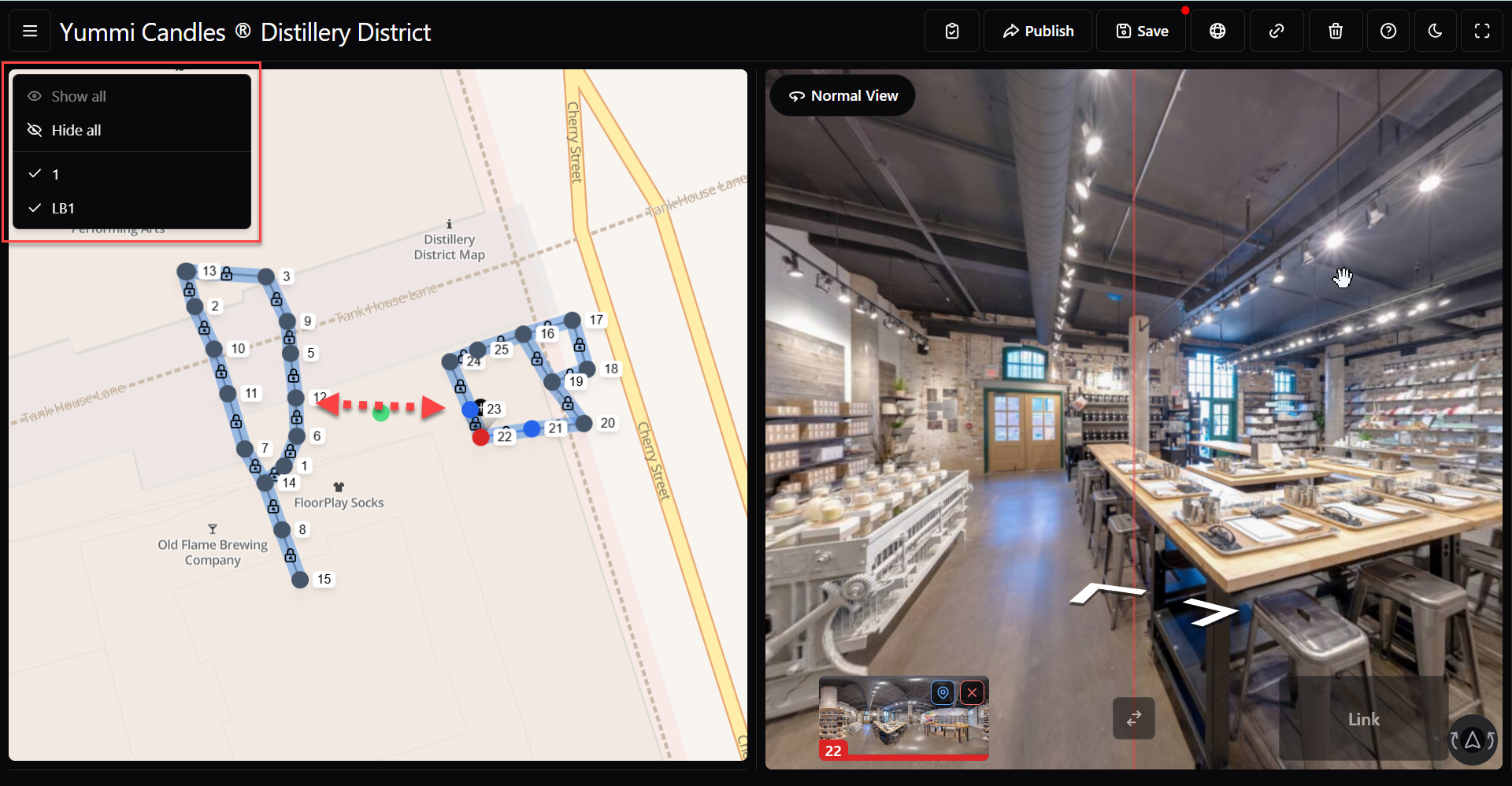
Step 3: Check Distance Between Levels
- Identify panoramas from different levels (for example: Ground vs LB1).
- Check if at least one pano from each level is within 30 meters of the other.
If a level is isolated or too far away, Google will not display it in the Elevator Widget.
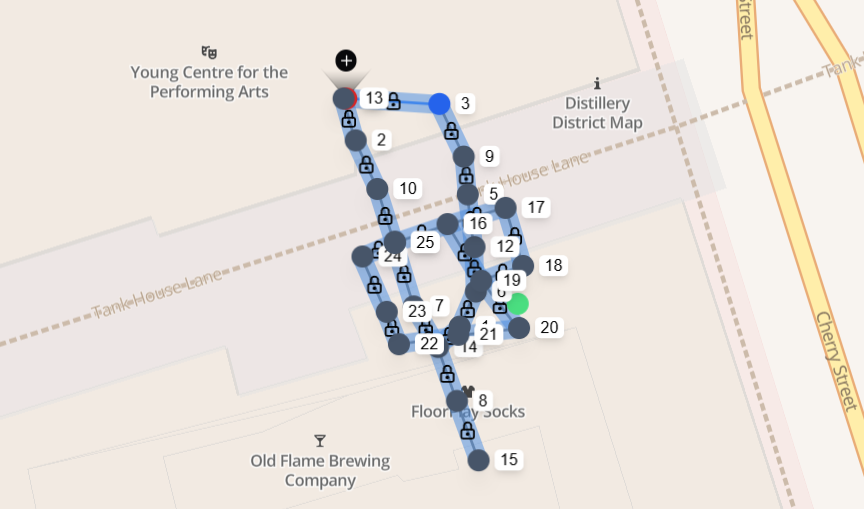
Step 4: Move Panoramas to Create Proximity
- Click and drag the panoramas on the map.
- Bring at least one panorama from each level close enough so they overlap or sit within ~30 meters.
- Ensure the navigation links between them make logical sense.
- Click Save.
Important Notes About Updating Levels
If this is an older published tour and you add or change levels, you must:
- Delete the existing Street View tour first
- Re‑publish all panoramas
Step 5: Update the Tour on Google
- Go to Constellations → Google.
- Click Update Tour on Google Street View.
- Select Start Publishing.
Step 6: Wait for Google Processing
- Google typically needs up to 48 hours to process navigation and level changes.
- After processing, the Elevator Widget should appear on Google Street View.
Important Notes About Updating Levels
- If this is an older published tour and you add or change levels, you must:
- Delete the existing Street View tour first
- Re‑publish all panoramas
Google assigns levels only at publishing time. Updating levels without deleting and re‑publishing will not update the Elevator Widget.
Key Takeaway
If levels are not showing on Google Street View:
- Make sure panoramas from different levels are within 30 meters of each other
- Use the Moderator to adjust constellation positions
- Re‑publish the tour after saving changes
- For older tours, delete and re‑publish to apply new levels
Once these steps are completed, Google will correctly display the Elevator Widget.